Zero Point Logic Studio
A downloadable tool for Windows
Zero Point Logic Studio is a Windows app for browsing, fixing and exporting pixel-art sprite libraries: sheets with square cells, one row per direction, up to 8 directions. A sheet carries its cell size in its file name, so a library can hold 64, 80, 84 or 92 px sheets side by side. Other layouts come in through the Import wizard.
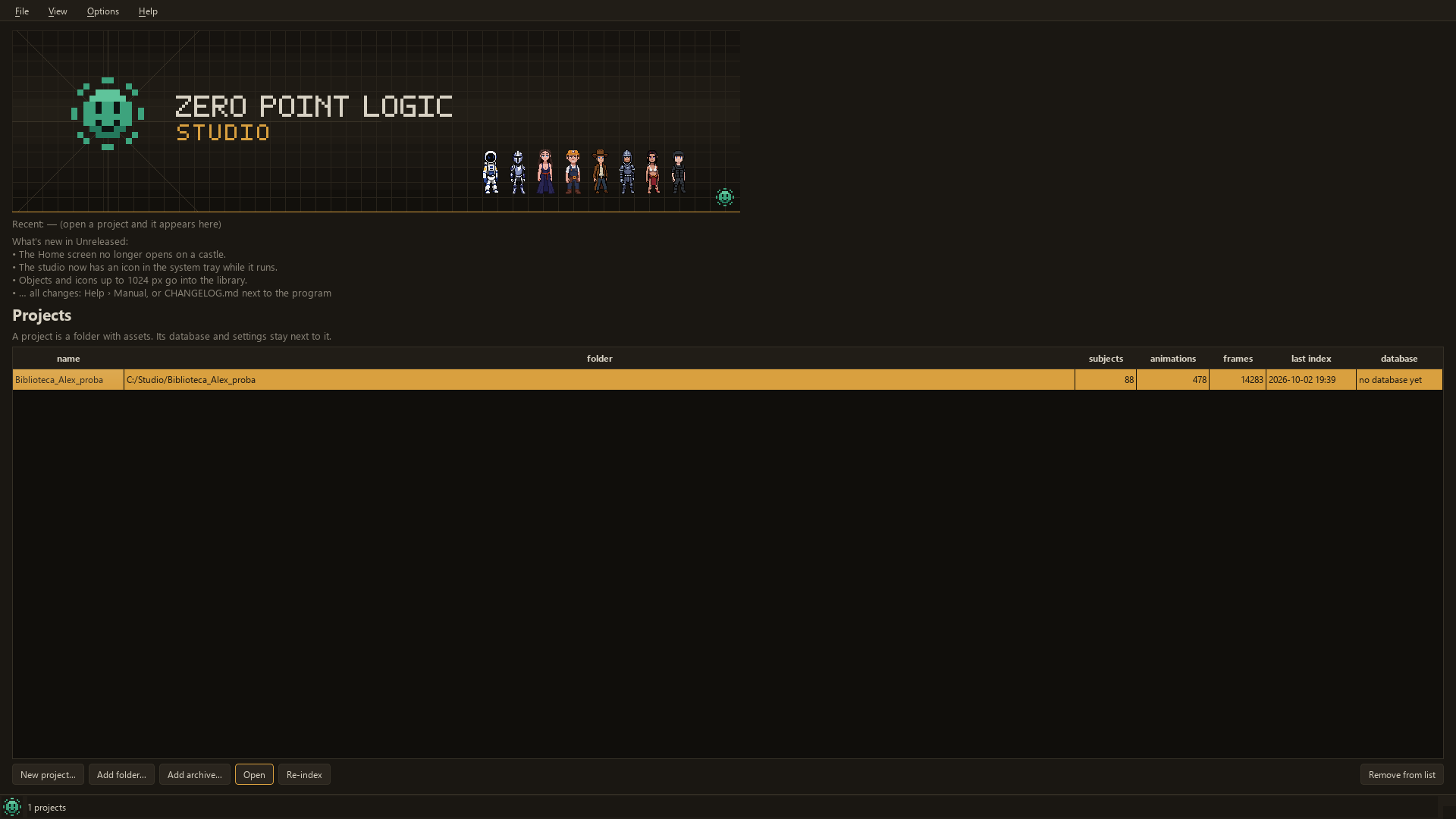
What Import writes for an animated subject is a 64x64 cell (static objects keep their own cell, from 8 to 1024 px — see below). A frame smaller than that is placed in the cell centred left-to-right and sitting on the bottom row, so a 16 or 32 px sprite keeps its size and stands on the floor of a 64 px cell rather than being blown up. A frame larger than 64 px is not scaled down silently: Import either crops it with one window shared by the whole animation (the usual case for a PixelLab export, whose frames are 80 or 84 px) or refuses it, and you pick which. Animated sheets with 16, 32 or 128 px cells are not in this version; static icons at any of those sizes are.
No sprites included — bring your own (PixelLab zips, strips, frame folders, Aseprite JSON). The app ships with no art at all: no sprites, no packs, no sample library. The sprites in the screenshots come from the author’s own library and are not part of the product; the asset packs are sold separately. It is a tool, not an asset pack.
What it does
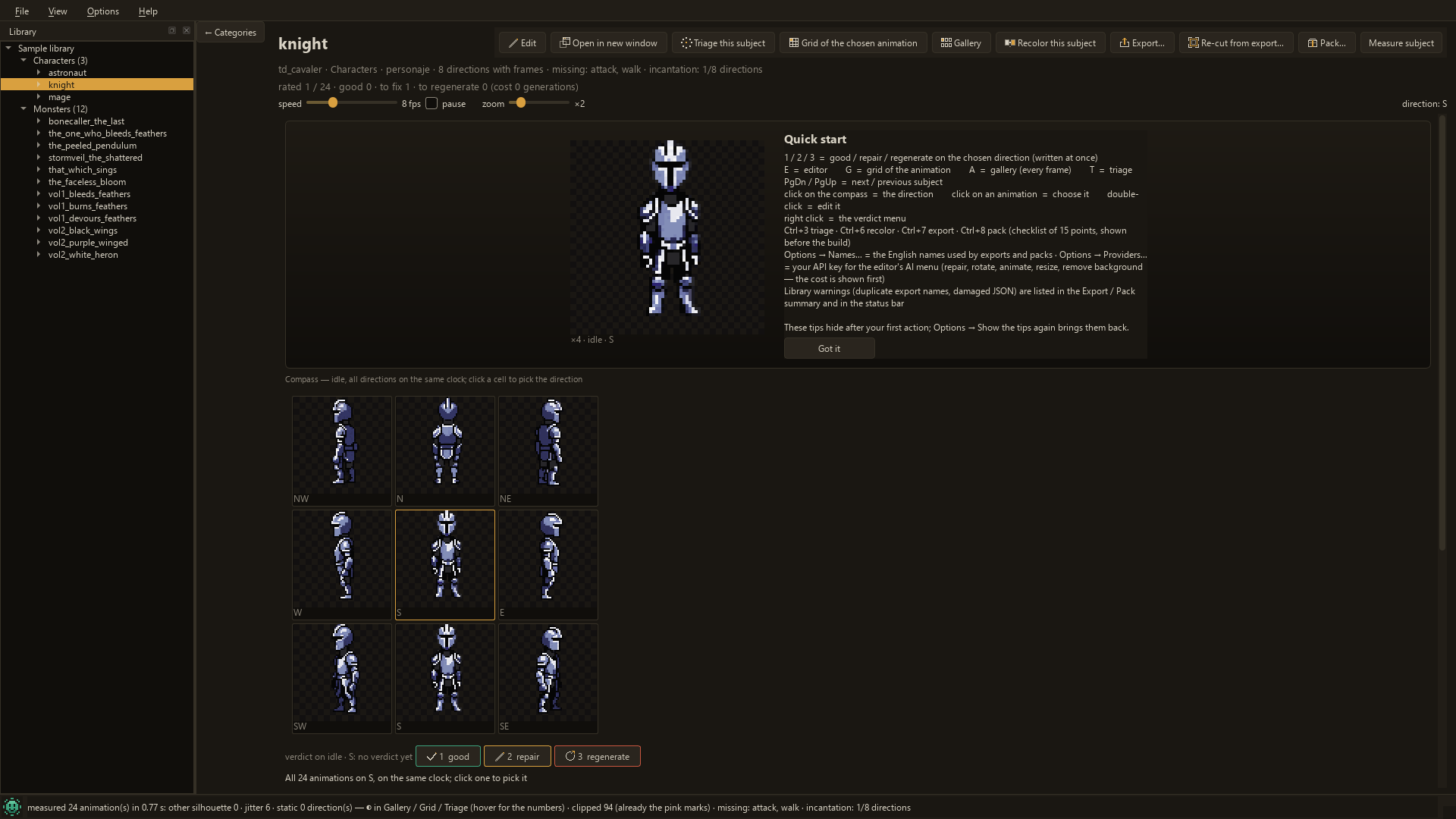
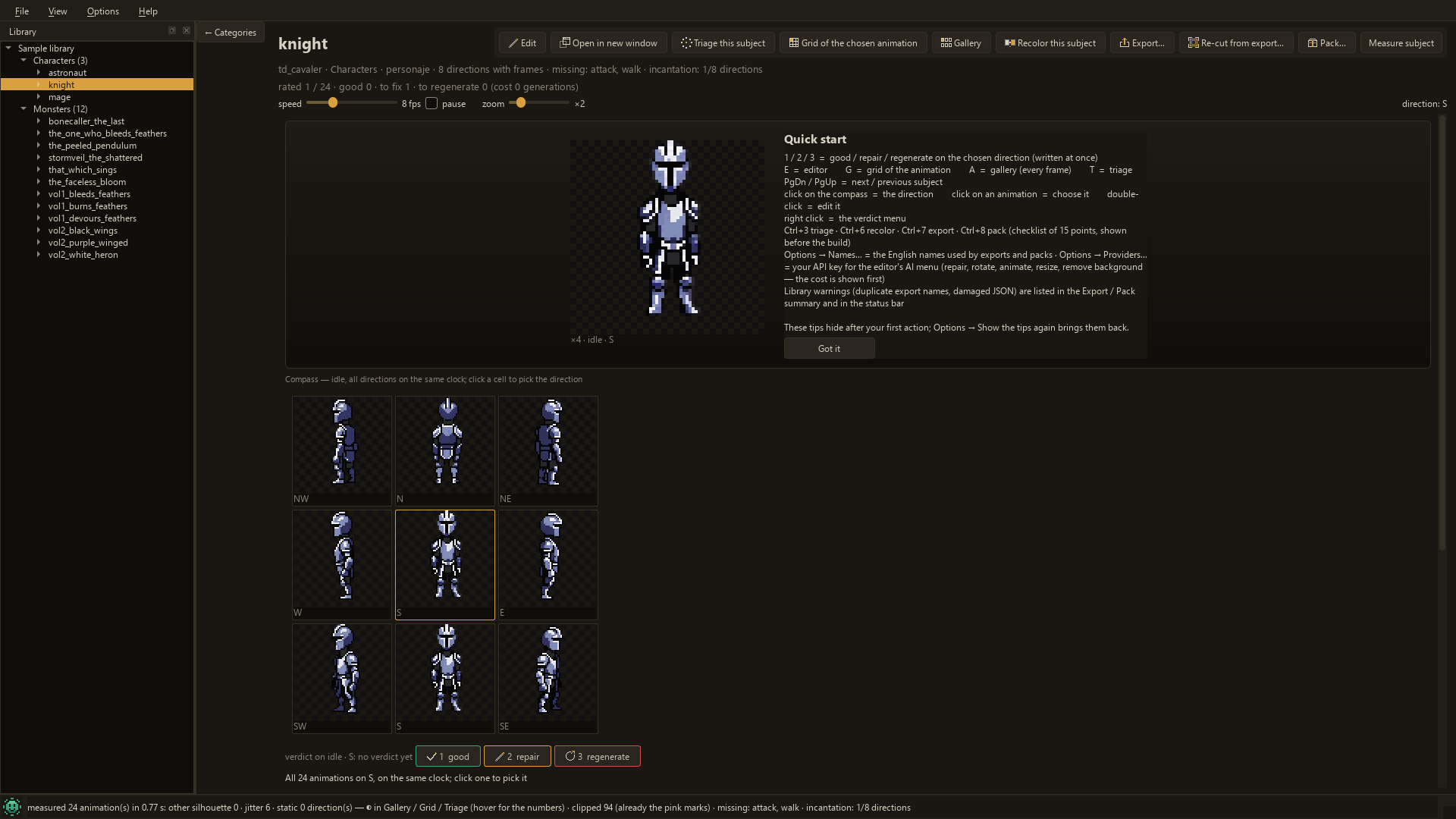
- Browse: an explorer-style library tree (project, category, subject, animation), a direction compass, and every animation frame by frame.
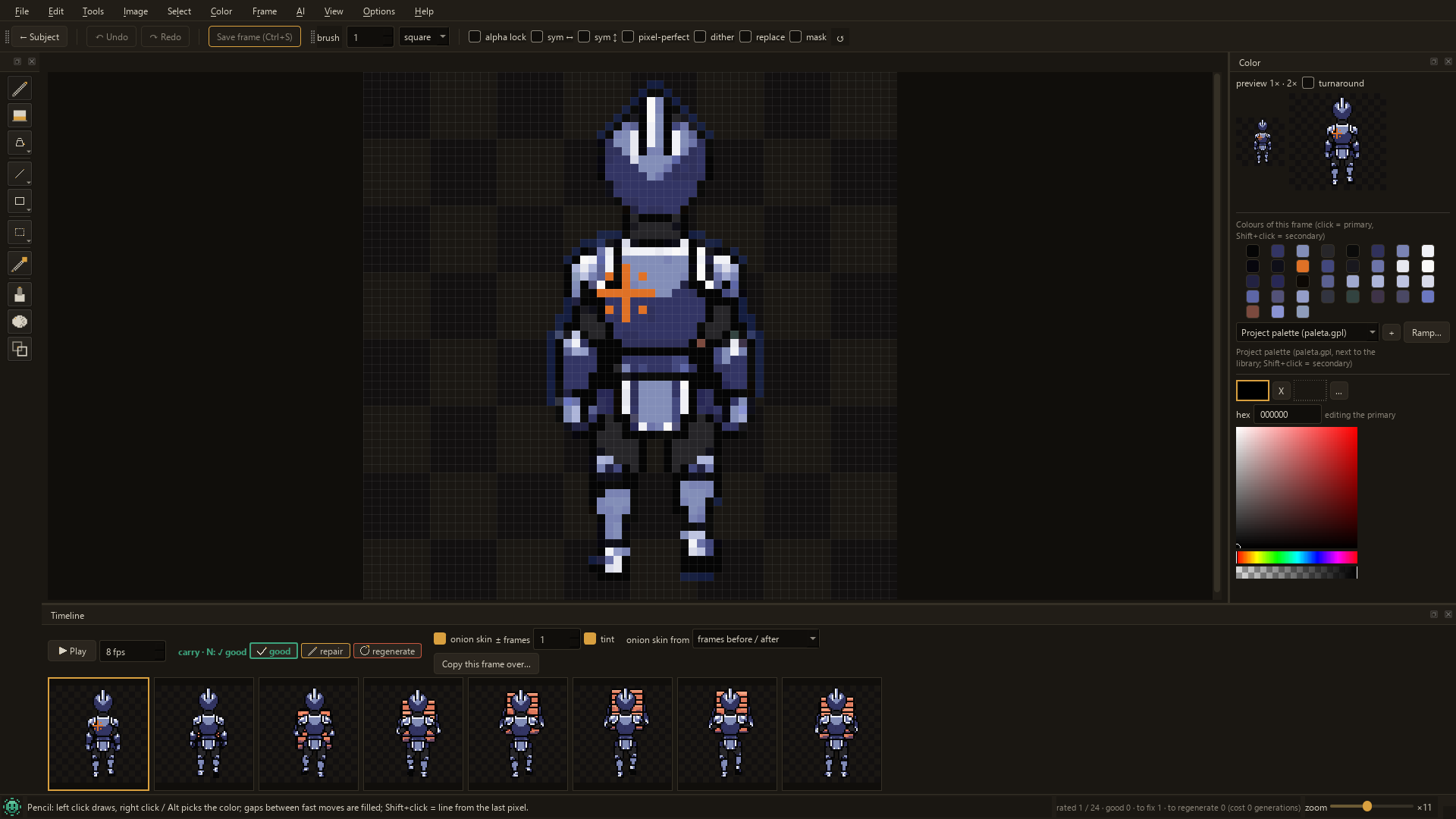
- Edit pixels with 17 tools: pencil, eraser, eyedropper, fill, line, rectangle, ellipse, polygon, curve, select / move, ellipse select, lasso, magic wand, dithered gradient, stamp, shade and take-from-neighbour. Plus: rotate a selection by any angle, mirror drawing and flips, colour ramps, auto outlines, onion skin, undo/redo on the open frame (up to 60 steps) and a separate undo for whole-sheet operations.
- Recolour in batch: one colour, or one colour and its nearby shades, replaced across a whole subject.
- Re-cut sheets from the original PixelLab export zip with a larger window (80 px by default), and stabilise a jittering direction (every frame moved whole so the feet land on the same row).
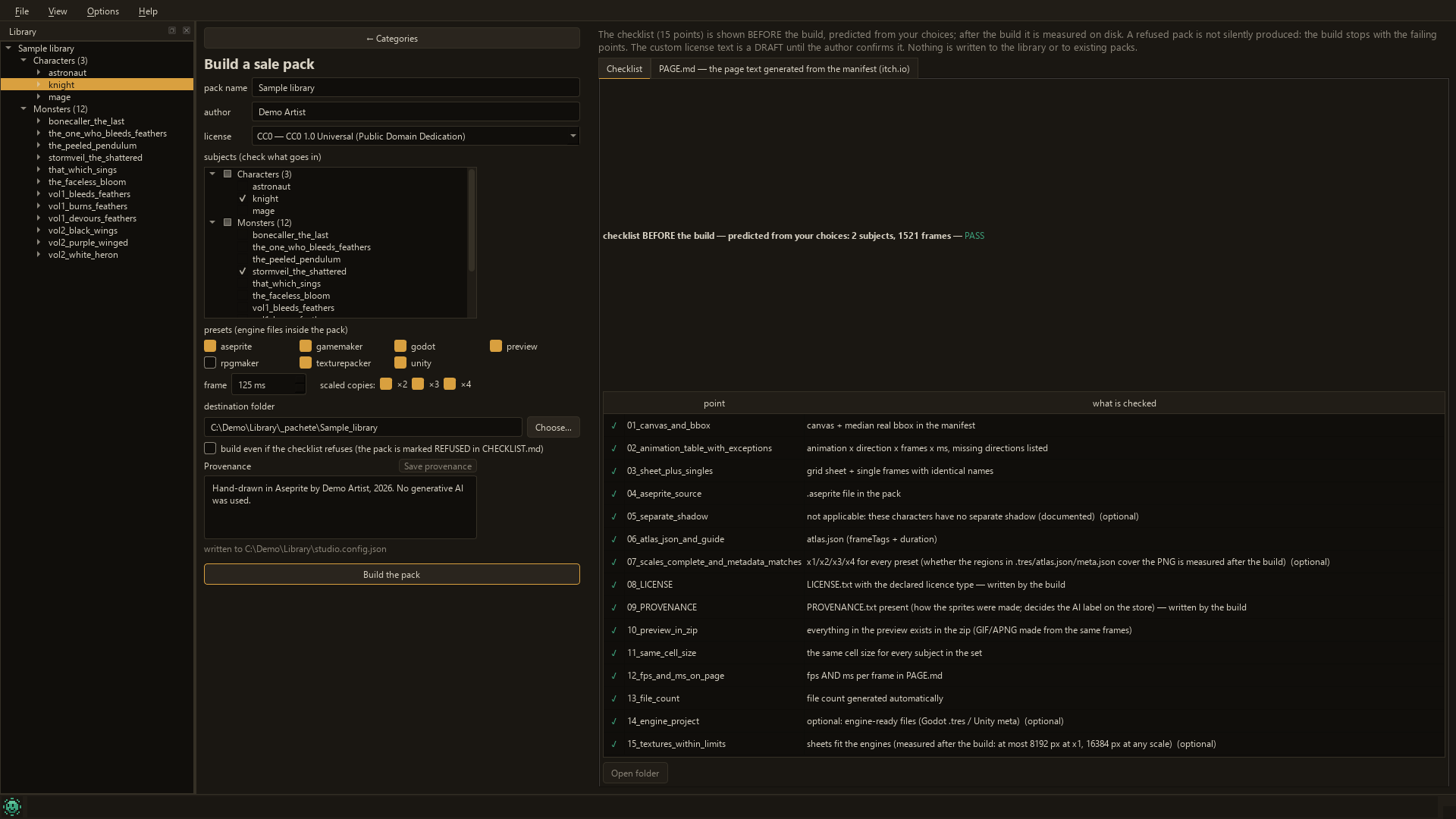
- Import PixelLab zips, strips, frame folders and Aseprite JSON. Export for Godot, Unity, GameMaker, RPG Maker, TexturePacker/Phaser and Aseprite, write GIF and APNG previews, and build sale packs with a 15-point checklist.
- Measure subject marks the directions that look like another silhouette, jitter or barely move, counts the directions that touch the top, left or right edge of the cell, and shows which required animations are missing (by default the ones most subjects in your library have; Options lets you set a list per group).
- Export good material writes a new folder outside the library with only the animations you voted good, indexed, with a report.
Safe writes
Every edit to an existing sheet (editor, batch recolour, frame durations, AI assistant via MCP) goes through one writer: it backs up each file the first time it is touched, adds a line to the edit journal, and updates the sheet, its x2 copy and the frame files together. If the journal line cannot be written, the app says so instead of staying quiet.
In the Godot, Unity and TexturePacker exports, a sheet that would be taller than 4096 px is laid out in rows instead; a clip is never split.
Keyboard
Every button on all ten screens — Home, Categories, Subject, Grid, Triage, Gallery, Editor, Recolor, Export and Pack — can be reached with Tab and the arrow keys, and the menus open with Alt. (65 of the 105 menu entries also have a keyboard shortcut; the rest you reach through the menu.) An automated test walks each screen with Tab until the chain closes and fails if a single control is left out; the dialogs are not part of that walk.
AI access
An MCP server (ZeroPointLogicStudio.exe --mcp, 20 tools) and a command line (--scan, --measure) let an AI client review, measure and retouch frames through the same writer — your own client, your own keys; nothing is sent anywhere by the studio itself. Paid image generators are not part of this version.
Privacy
No telemetry, no account, no login. On its own the app makes one connection: it asks itch.io which version is published, about a second after startup and at most once a day. The request goes to a public itch.io address and the answer is under 1 KB. It carries this product’s own itch page ID and the app’s version number — the ID of the game, which is public and the same for everyone, not anything about you: no account, no licence key, no machine ID. You can switch it off in Options ("Check for updates at startup"). If the itch app installed this copy, the app does not even ask: the itch app keeps it up to date by itself. Everything else connects only when you click. There is no AI feature in this version: the studio calls no model, asks for no key, generates nothing, and sends no picture from your library anywhere. The MCP server described above is the only way an AI can touch your frames, and it is your client, on your machine, with your keys — the studio itself never calls out, and what your client does with a frame after you hand it one is between you and that client.
Install
Install it with the itch app, or unzip the download anywhere. No installer and no admin rights needed. Updates install themselves when you use the itch app. The itch app is the smoother route, and it is the one I recommend.
The program is not code-signed yet, so Windows does not recognise it. If you run the unzipped copy, SmartScreen shows a blue “Windows protected your PC” window: click More info, then Run anyway. And if Smart App Control is on — a Windows 11 feature that only ever switches on after a clean install of Windows — it blocks unsigned programs outright, with no “run anyway”: your choices are to turn it off, which is permanent and cannot be undone without reinstalling Windows, or to wait until this app is signed.
Requirements
Windows 10/11, 64-bit. About 140 MB on disk. The window does not go below 1280×720, and that is the supported minimum — 1280×720 after Windows display scaling, which is what decides it. Scaling does not change the layout, only how much room is left: at 150 % a 1920×1080 screen gives 1280×720 exactly, and a 1366×768 screen gives 911×512, which is below the minimum. With the title bar and a taskbar on top of that, a 1366×768 screen at 100 % is the smallest that comfortably fits the window. Measured up to 7680×2160, including ultrawide 32:9.
No sprites included — bring your own (PixelLab zips, strips, frame folders, Aseprite JSON). The app ships with no art at all: no sprites, no packs, no sample library. The sprites in the screenshots come from the author’s own library and are not part of the product; the asset packs are sold separately.
Price
$9.99, one-time. New versions are free to download from this page.
How it was made
The studio's code was written with an AI coding assistant (Claude). The Home screen banners contain PixelLab-generated character sprites. The Home band shows the studio’s mark and its name, drawn by code; so are the 31 interface icons. No image generator was used for anything that ships. The editor's bundled palette is DawnBringer 32 by Richard Fhager.
The sample sprites in the screenshots were generated with PixelLab and are shown as they are in the library, without hand corrections.
The app bundles open-source components under their own licences — Qt via PySide6 (LGPL-3.0), Python (PSF), Pillow (MIT-CMU), numpy (BSD-3-Clause), and algorithms transcribed from Pixelorama (MIT). The full notices are in _internal\licente inside the download, and the licence agreement is in EULA.txt next to the app.
Objects and icons, not only animated sprites
A library is not only characters. Weapons, armour, food, nature, UI, skills, materials, buildings, tiles, vehicles, props and static effects go in as well, each one element per frame, at its own cell size from 8 to 1024 px — nothing is padded to 64, nothing is cropped. Elements of different sizes, such as UI bars and panels, are centred in a square cell as wide as the largest side, and every element's real size is kept in a file next to the sheet. A folder that holds more elements than fit on one row becomes several one-row animations of the same subject rather than several rows, because in this library a row is a direction.
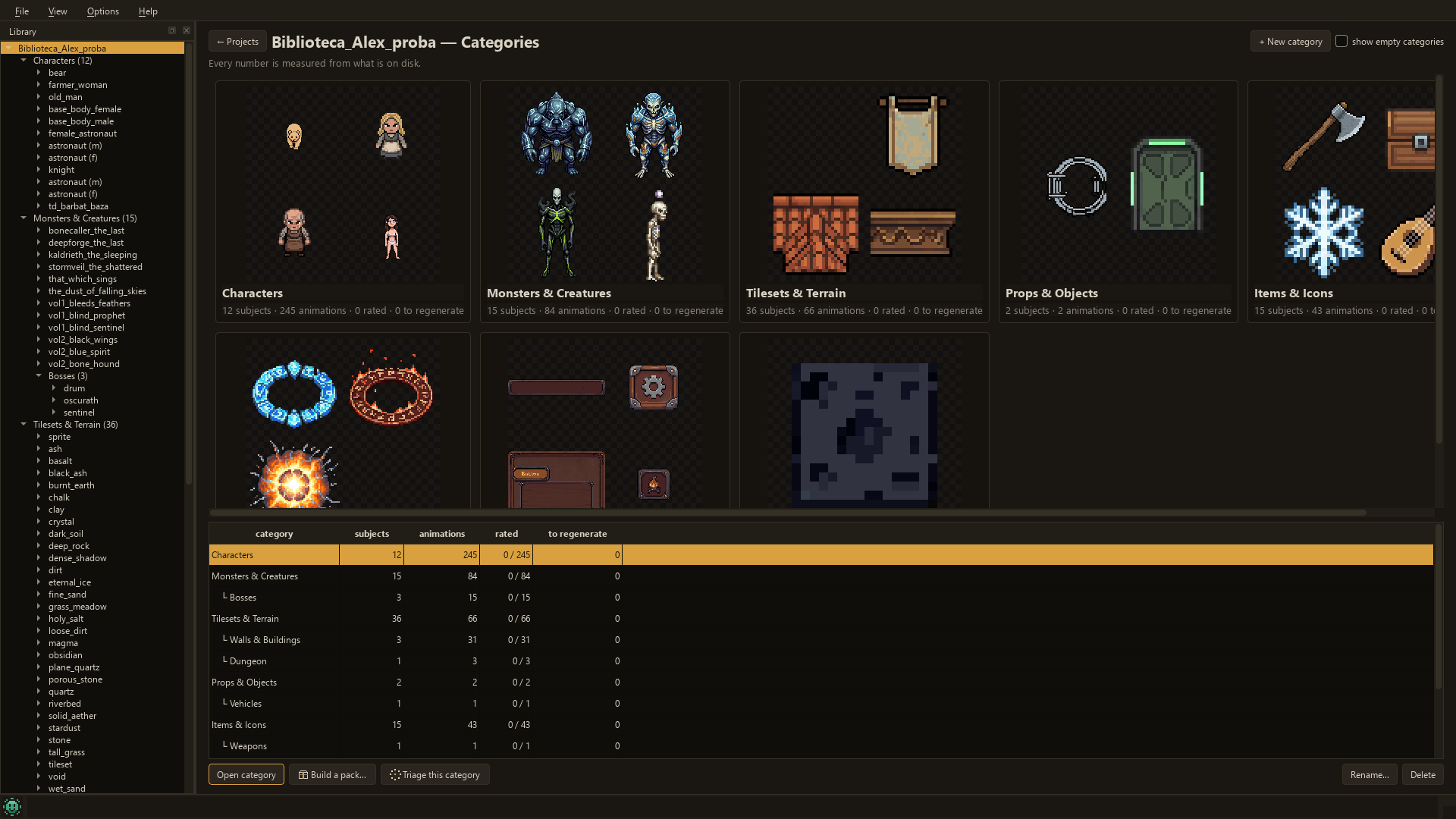
Categories come from the names you already use, and the numbers on them are measured from what is on disk, not from a list kept by hand. You can add a category of your own and rename one, and both are stored beside your library, so they travel with it. Measured on a real library of 88 subjects — animated characters, monsters, bosses, terrain, icons, props and UI — every one of them landed in a category and none in "Other".
Help → Adding your art is a short guide to all of this, and the same text ships beside the program as ADDING_YOUR_ART.txt.
Adding your art
The studio reads a library: a folder of groups, each group holding subjects, each subject holding sheets.
- Animated characters, monsters and effects. Projects -> Add folder..., and pick the folder that holds your groups. The studio indexes it and says what it found; it writes nothing into your art. If a folder holds images but no sheets, it offers to open the import screen instead.
- Objects and icons - anything with no direction: weapons, armour, food, nature, UI, skills, materials, buildings, tiles, vehicles, props, static VFX. Open the import screen and pick the format yourself: "static icons" for a folder of separate images that becomes one subject (one element = one frame, at its own cell size, from 8 to 1024 px), or "effect" for one animation without a compass. Neither is guessed: a folder of eight 64 px frames looks exactly like a batch of icons.
- Elements of different sizes - UI bars, buttons, frames - go in with the fitting option: each element is centred in a square cell as wide as the largest side it finds. Nothing is scaled, nothing is cropped, and every element's real size is kept in a file next to the sheet.
- More elements than fit on one row become several one-row animations of the same subject, not several rows. In this library a row is a direction, and a sheet of three rows would claim three directions that do not exist.
- Where they turn up: View -> Categories (Ctrl+1). Each card is a category, with its counts measured from what is on disk, not from a list someone kept by hand.
- Your own categories: "+ New category" makes one under the name you give it, and "Rename..." renames the one you picked. Both are kept in categorii_studio.json beside your library, so they travel with it.
If something is wrong
Write to contact@zeropointlogic.io, or leave a comment here. A bug report is most useful with what you did, what you expected, and what happened instead - and the message the studio showed, as it was.
Published by Zero Point Logic Games.
More from Zero Point Logic Studio
- RPG Inventory Icons — 192 items at 32x32: potions, weapons, armour and crafting materials, with atlas sheets and 2x upscales. Opens straight in the studio.
- All packs and tools: zplstudio.itch.io
Purchase
In order to download this tool you must purchase it at or above the minimum price of $9.99 USD. You will get access to the following files:
Leave a comment
Log in with itch.io to leave a comment.